Supabase OAuth Integration
Create a free account on Supabase.
Once you finish signing up and verify your email, Supabase will show a modal to Create an Organization.
Choose the default settings and click Next.
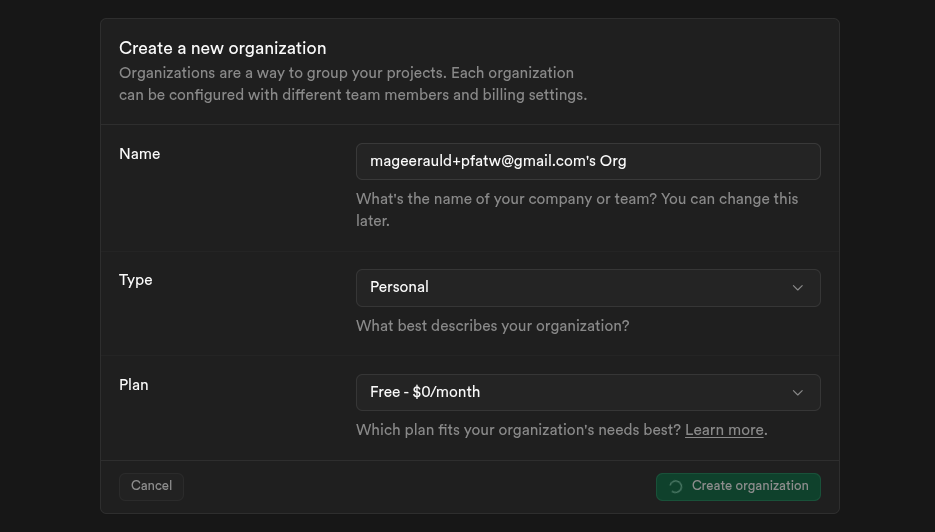
After that, Supabase will show the Create New Project modal.
Click Cancel.From the sidebar, go to Organization Settings.
In the Organization Settings sidebar, click OAuth Apps.
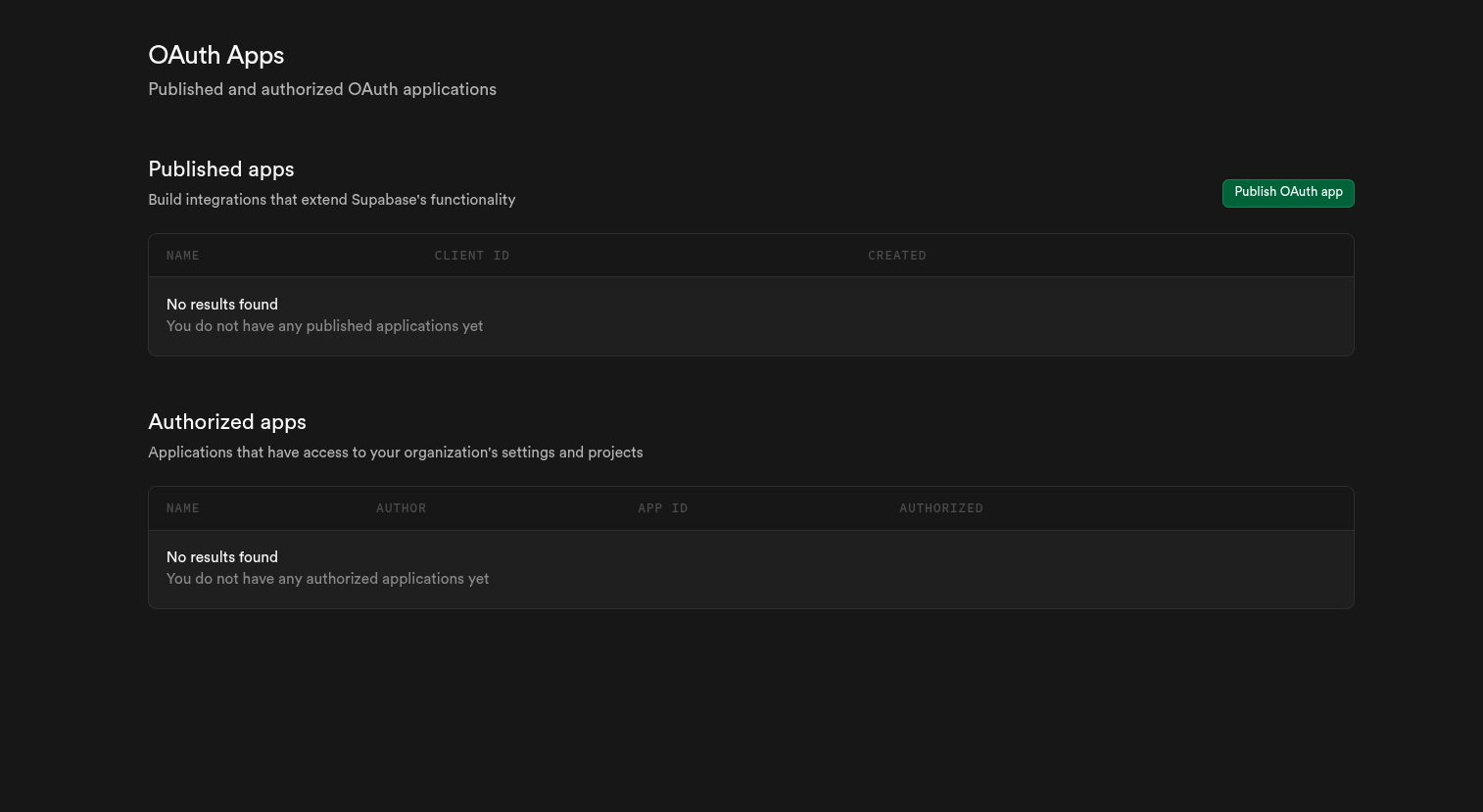
Click the Publish OAuth App button.
A right-side dialog will open asking for the following details:
- Application Name – Enter a name like
Vibe Web(or any name you prefer). - Website URL – Enter your website URL.
- Application Permissions – From the dropdown, select Read and then Write for all permissions.
- Callback URL – Enter your domain followed by the callback path.
https://yourdomain.com/client/supabase/callbackExample:
https://example.com/client/supabase/callback- Application Name – Enter a name like
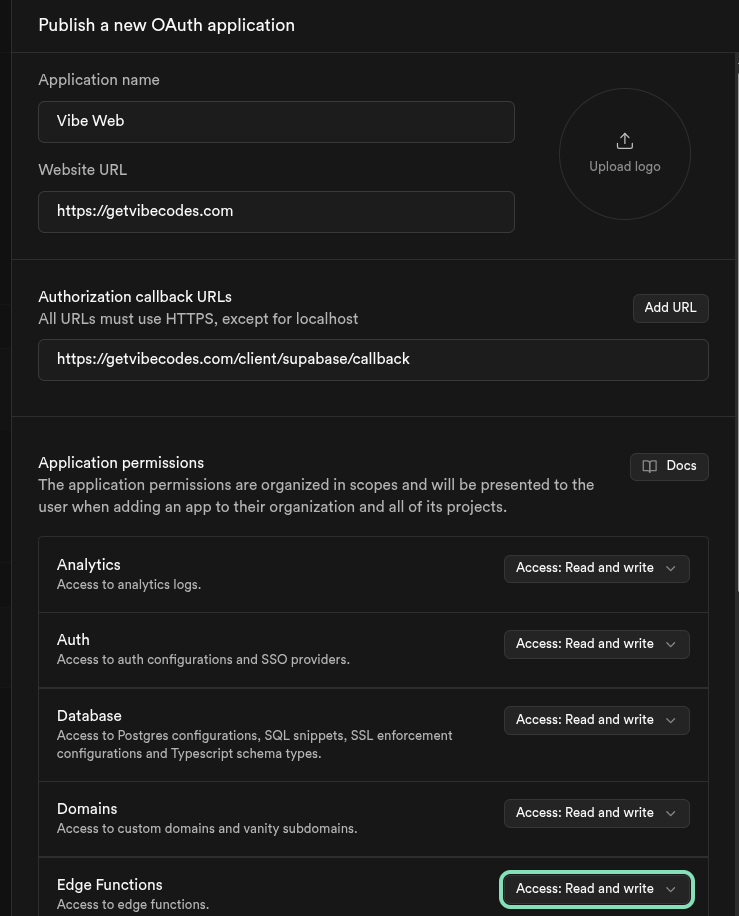
After filling in all the details, proceed to Confirm.
Copy the Client ID and Client Secret. Then go to the Vibe Web Admin Panel, scroll to the Settings page, and enter these keys in:
Other Integrations → Supabase