Mongo DB Setup
MongoDB Atlas Setup Guide
Create your account at:
https://www.mongodb.com/cloud/atlas/registerVerify your email address and enable 2FA (Two-Factor Authentication) when prompted.
You will see a screen asking some personalization questions.
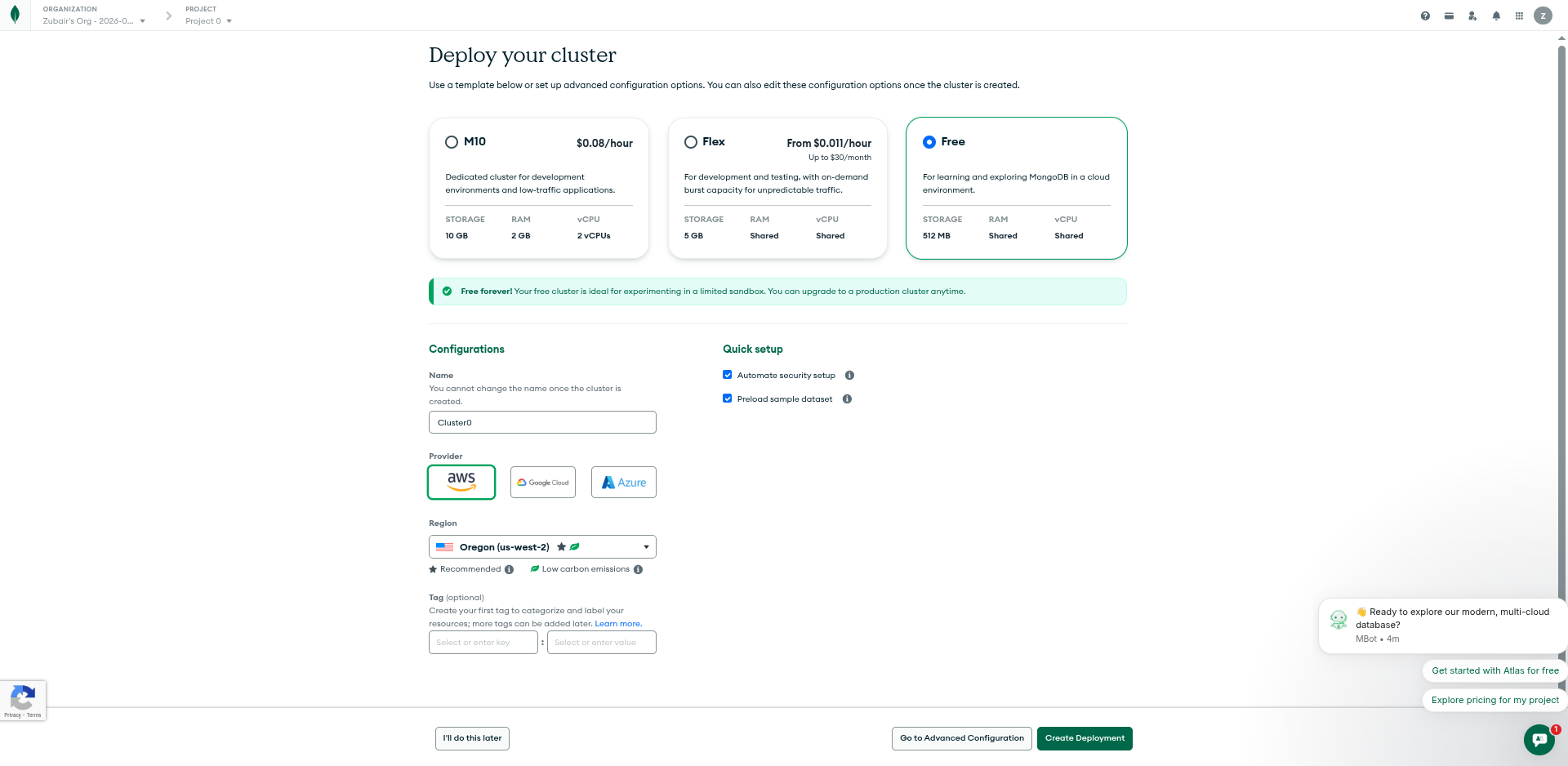
Click Skip from the bottom-right option.MongoDB Atlas will ask you to choose a server for deploying the cluster.
- You can choose the Free plan initially and upgrade later if needed.
- If you prefer, you can select any paid plan.
For the cloud provider, you can select any provider:
- AWS
- Google Cloud
- Azure
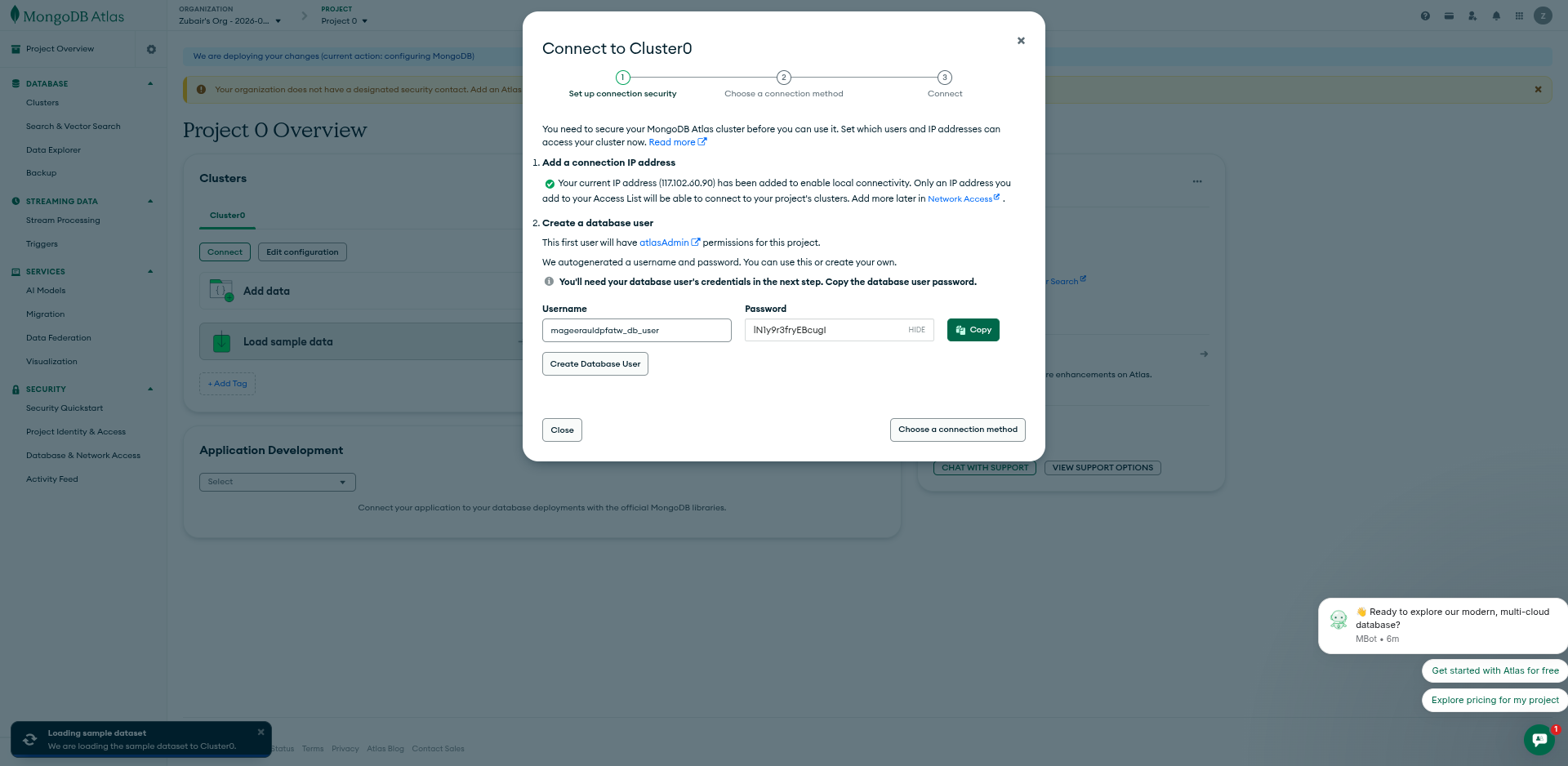
- A modal will open asking you to set up a database username and password.
- Enter your username and password.
- Save these credentials somewhere safe.
- Click Create Database User.
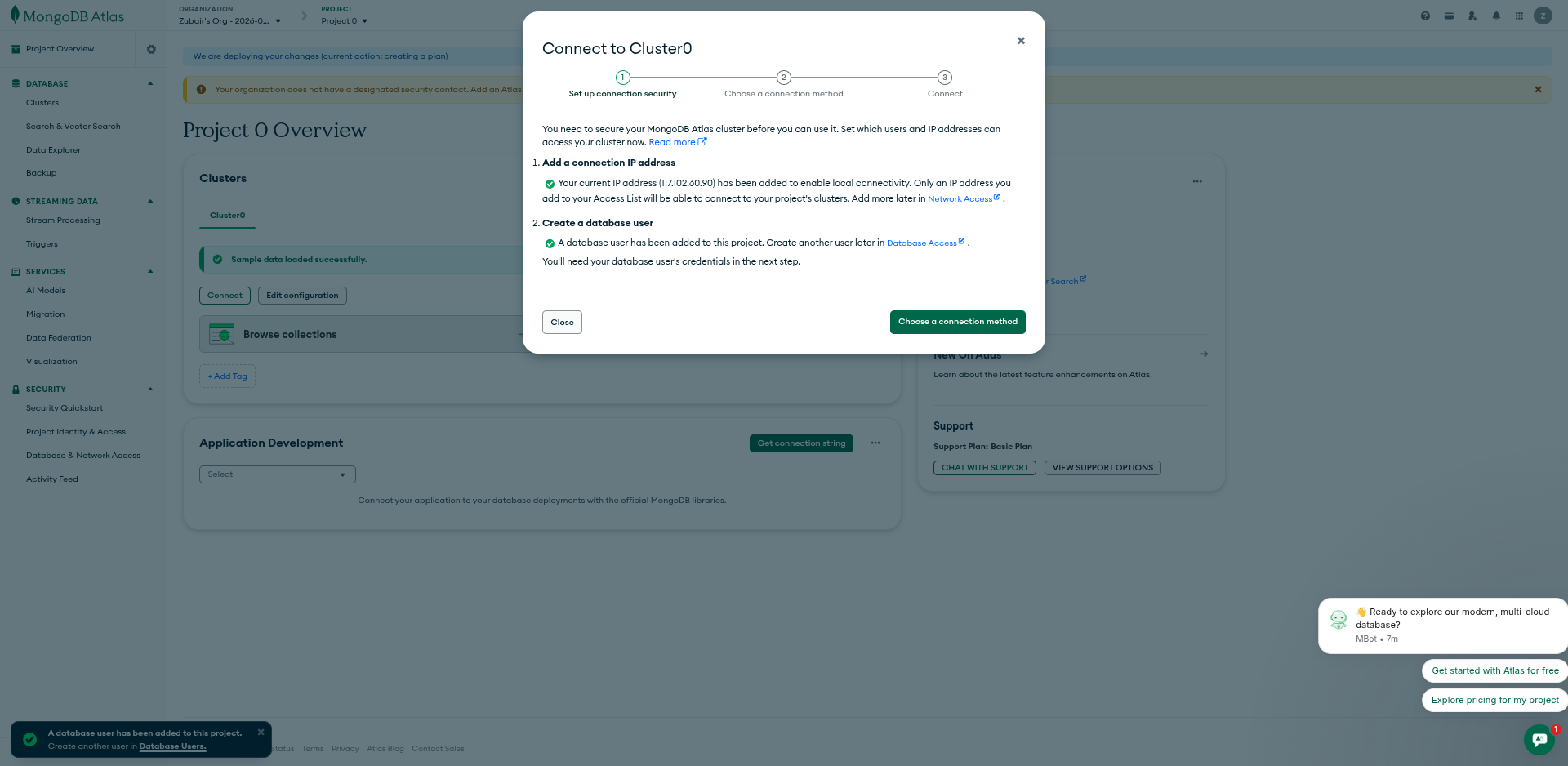
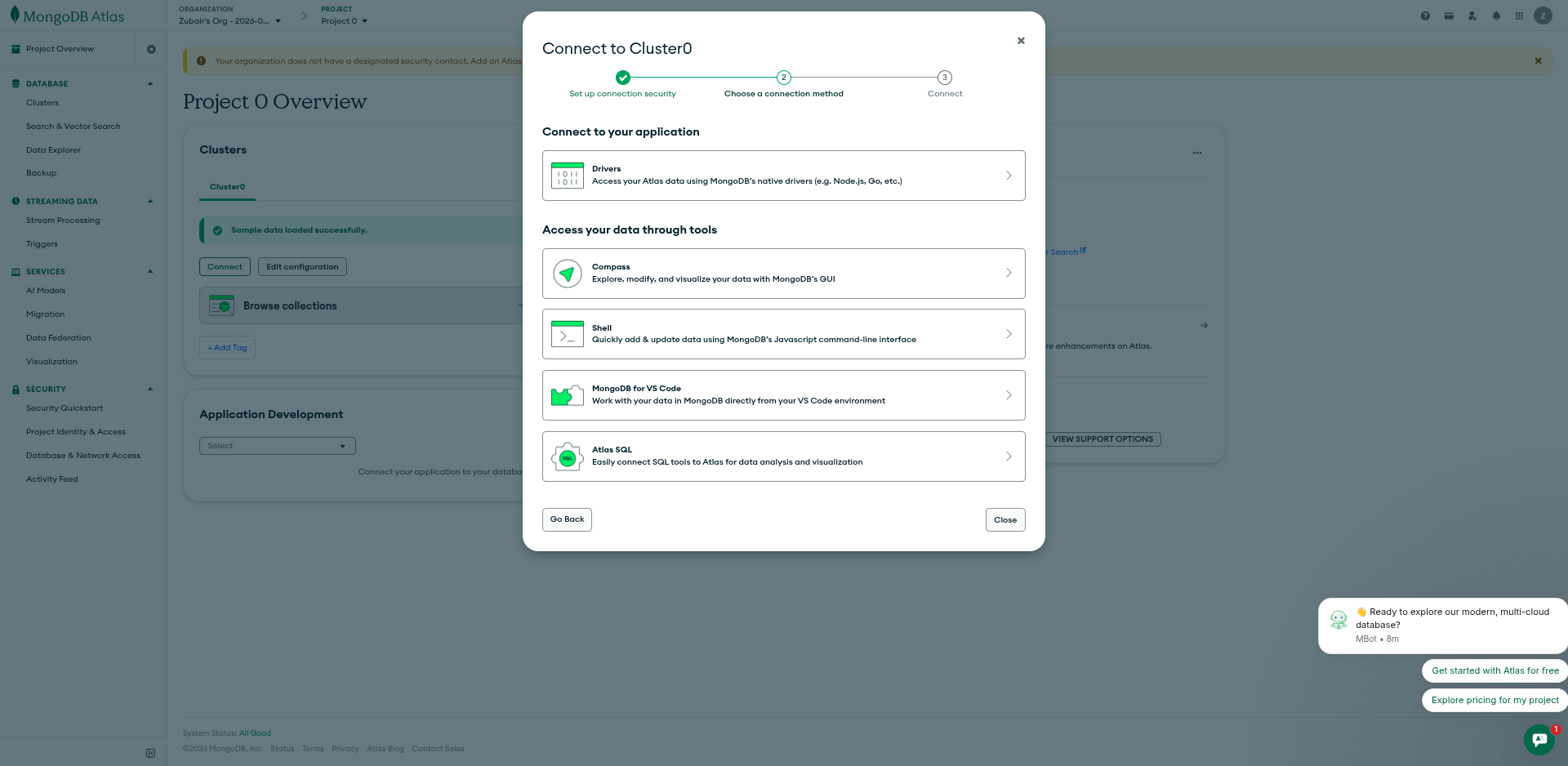
- After that, click the Choose a Connection Method button.
- Select Drivers.
- From the third option, copy the MongoDB connection string.
This is important because it will be used to connect to the database.
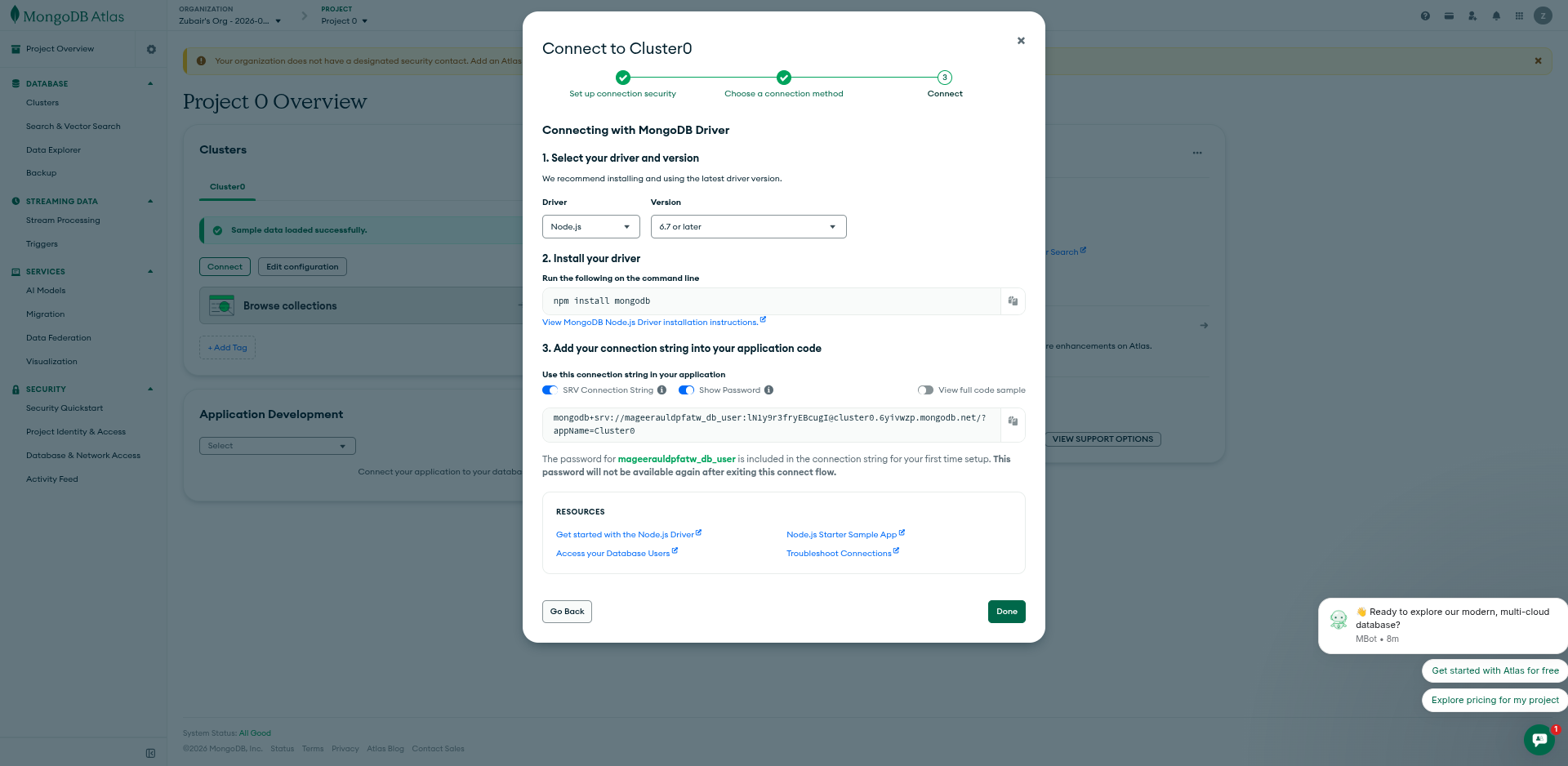
Click Done.
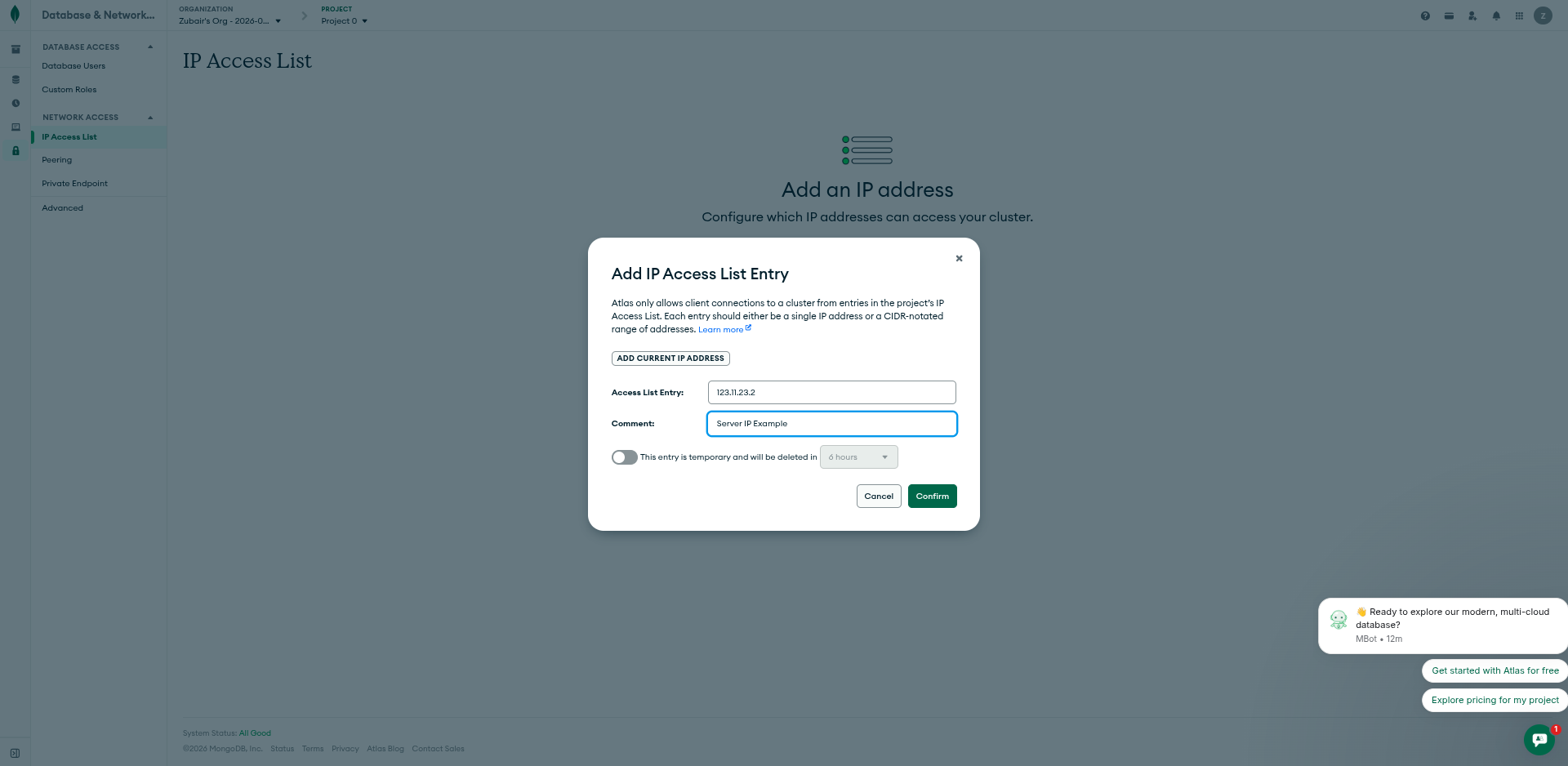
Next, we need to add our server IP address so MongoDB Atlas allows our server to access the database.
From the side menu, click Database Access & Network Access.
A new side menu will open. Click IP Access List.
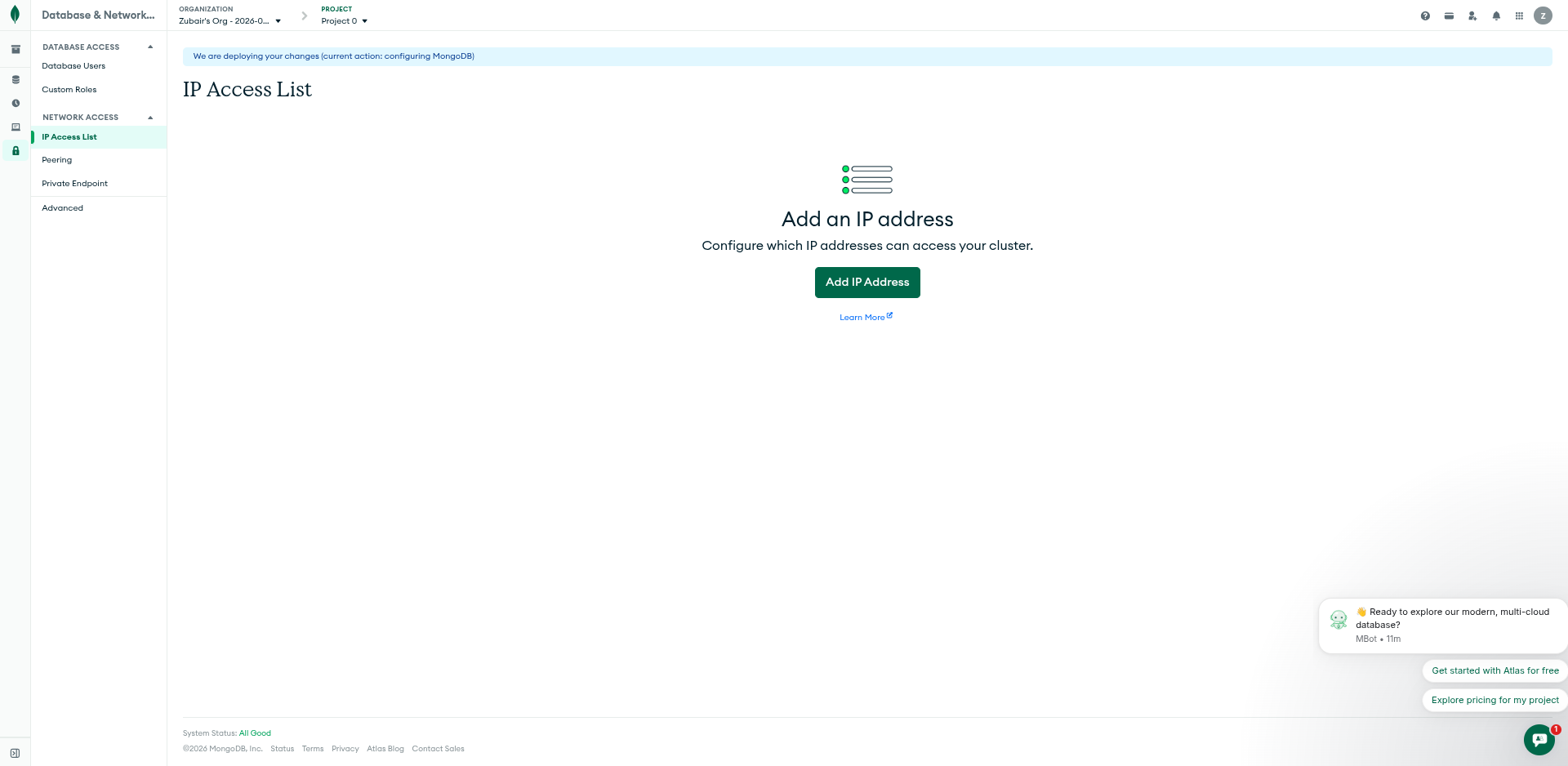
- Click Add IP Address and enter your server IP address.