Installing Vibe Web Core
Hosting the Vibe Web Core
The Vibe Web Core is the main application responsible for:
- Client application
- Admin panel
- Payment gateway
- Backend APIs
- Authentication
- Platform management
Follow the steps below to deploy the Core on your VPS.
Step 1 — Upload Core Files
- Open aaPanel.
- From the sidebar, click Files.
- In the file manager address bar, remove everything and enter:
/home
Press Enter.
Click New and create a folder named:
vibe-web-core
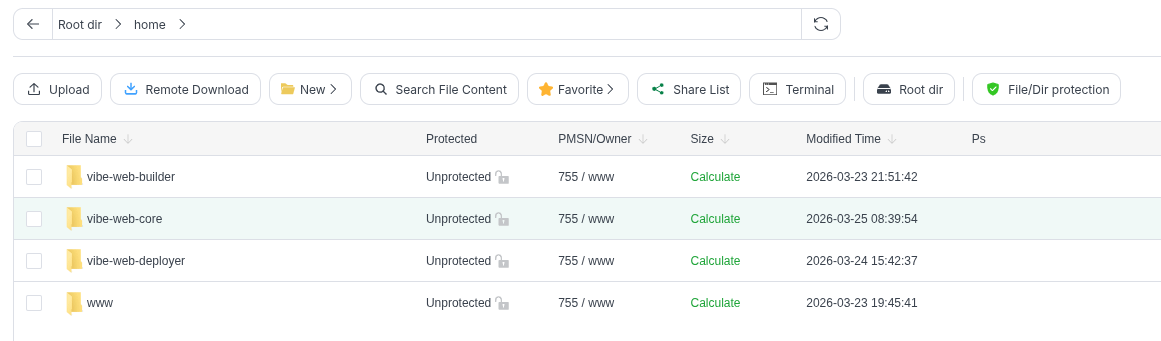
Open the folder.
Upload the file:
core.zip
- Right-click the file and select Unzip.
Step 2 — Run the Core Installer
Open Terminal from aaPanel or connect to your server via SSH / PuTTY.
Run the following command:
cd /home/vibe-web-core
Then run:
bash prod.sh
Step 3 — Enter Required Configuration
The script will ask for several inputs.
Website URL
Enter the full URL where you want to host Vibe Web.
Example:
https://mydomain.com
Important notes:
- Always include the https:// protocol
- Do not include spaces before or after the URL

MongoDB URI
Enter the MongoDB connection string that you copied earlier when creating your MongoDB Atlas cluster.
Example:
mongodb+srv://username:[email protected]/database
Admin Email and Password
Next, the script will ask for:
- Admin Email
- Admin Password
These credentials will be used to log in to the Admin Panel after deployment.
Make sure to save them securely.
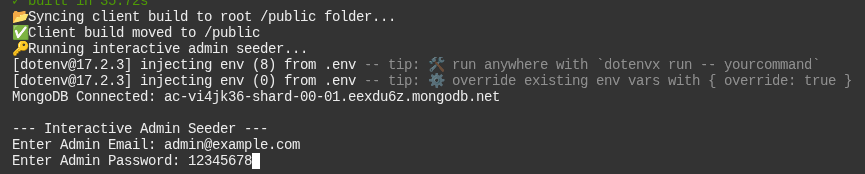
Step 4 — Wait for Installation
The script will now:
- Install required dependencies
- Build the application
- Start the core services
Wait until the installation finishes.
Step 5 — Configure Reverse Proxy
- Go to aaPanel → Website from the sidebar.
- Click Add Site.
- Enter your main domain (the same one used earlier).
Example:
mydomain.com
- Click Confirm.
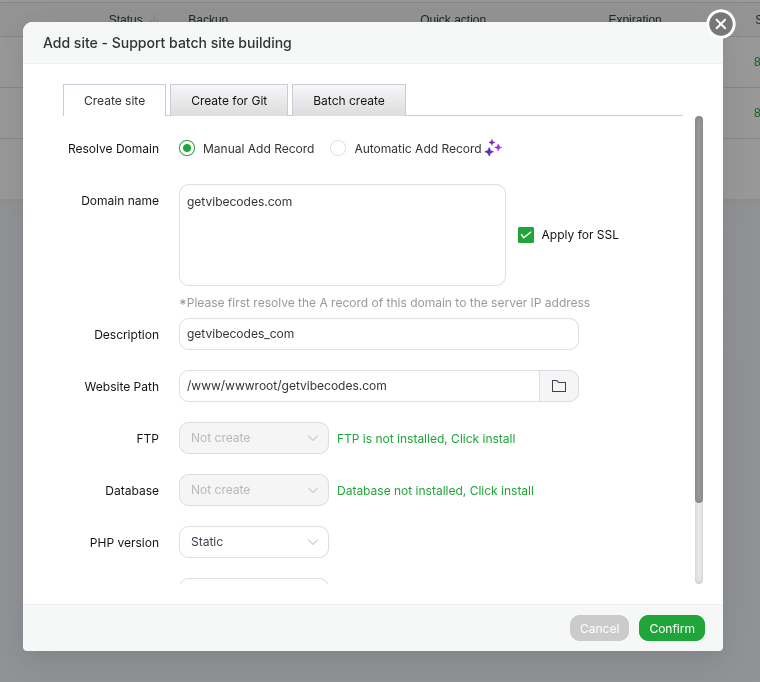
Step 6 — Configure Reverse Proxy
- Click Conf for the newly added website.
- A settings modal will appear.
- From the left sidebar, select Reverse Proxy.
- Click Add Reverse Proxy.
Enter the following value:
Target URL
http://localhost:3020
Then save the configuration.
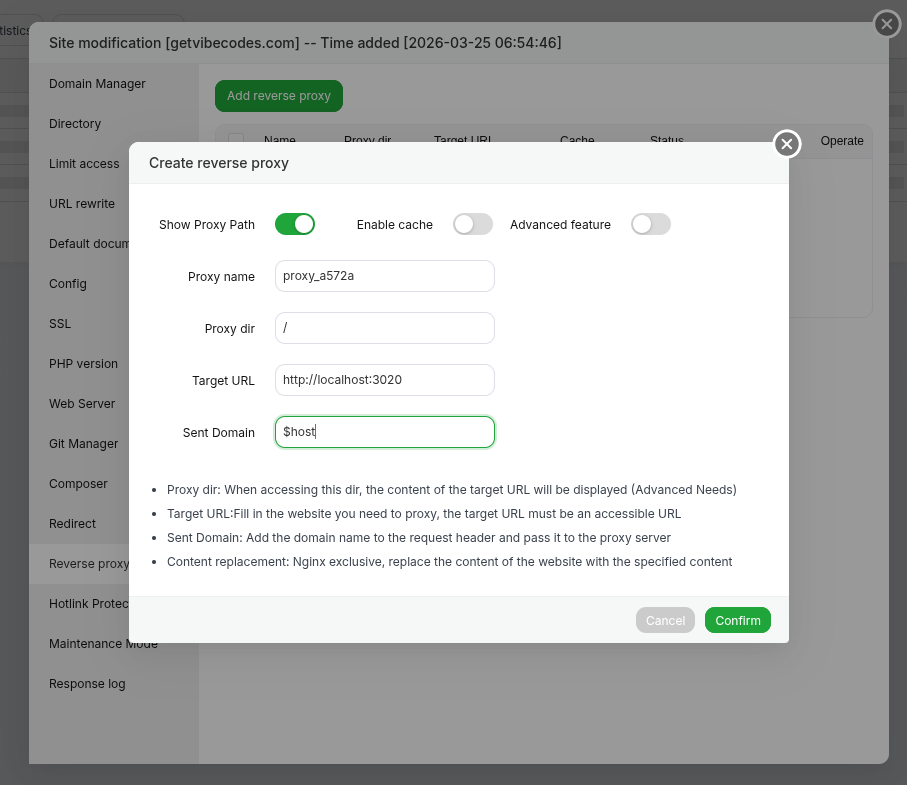
Setup Complete
Your Vibe Web Core should now be running.
You can access your platform using the domain you configured earlier, and log in to the Admin Panel using the admin email and password you created during setup.